


 Ubuntu Quick Tip
I find looking at a white background and black text a little daunting in Gedit, however in Ubuntu 7.10 (Gutsy Gibbon), you can easily change colour schemes and save your eyes. To change schemes:
In Gedit Go to Edit --> Preferences.
In the Preferences dialogue click on the Font & Colours Tab.
Then choose a scheme to suit you. 
Showing posts with label Gnome. Show all posts
Showing posts with label Gnome. Show all posts
Sunday, December 02, 2007
Changing the Color Scheme in Gedit

Friday, October 05, 2007
Gnome Tip: Changing shortcuts in gnome-terminal
 Quick Tip for anyone using gnome-terminal:
I really like using gnome-terminal, however when I went to use the ordinary copy or paste shortcuts I quickly found that the shortcuts differ from the normal old: <Ctrl>+C and <Ctrl>+P. I find this particularly annoying, but they can easily be changed.
Open the gnome-terminal and run the following two commands:# gconftool-2 -t str -s /apps/gnome-terminal/keybindings/copy "<Control>c"
# gconftool-2 -t str -s /apps/gnome-terminal/keybindings/paste "<Control>v">
Problem solved, now you can use the normal <Ctrl>+C and <Ctrl>+P to copy and paste.
Wednesday, July 25, 2007
Turning Ubuntu's Brown Eyes Blue
I mentioned in my post yesterday, that I've been having trouble looking at Ubuntu's orange theme.
The orange is wonderful for attracting people, for grabbing attention, and drawing you in and in these ways it certainly works. However looking at it all day can become a bit much.
There is a solution though. In the Ubuntu repositories there is a gnome theme called Blubuntu. Some elements of this theme I'm not keen on. Yet overall my eyes are thanking me.
Installing Blubuntu
It's really easy to make Ubuntu blue. First open Synaptic, and do a search for blubuntu. As you can see here there are a number of results. I would suggest installing them all.
If you want to just install Blubuntu-theme you can.
*Note: If you only install the Blubuntu-theme then you only need to read: "Selecting the Blubuntu theme" below. The rest will not apply.
Once the packages have installed you need to select them as follows.
Selecting the Blubuntu theme
To select the blubuntu theme you need to go to System / Preferences / Theme:
Once the Theme Preferences dialogue is open you need to select Blubuntu from the list:
Now you have the blubuntu theme installed, you'll notice that your icons, selection colour, window borders and more has changed.
If you are unhappy with any part of this theme you can customise it further. To do this hit Customise on the side of the Theme Preferences dialogue.
Selecting the Login Window (GDM) Selecting the Blubuntu login window is really easy. Just Go to System / Administration / Login Window. You will need to enter your password.
Select the local tab at the top of the dialogue box and then choose the "Blubuntu" theme (or another blue theme) from the selection. Make sure that the radio button is on.
You might also want to change the Background colour, in this dialogue box.
The Background colour is the colour that appears between the login window and the desktop being displaying. (Where the splash screen appears.) Selecting the Splash screen
To change the splash screen you first need to open a terminal.
(There are other ways of doing this, yet this is the quickest.)
Then backup old splash image:# sudo cp /usr/share/pixmaps/splash/ubuntu-splash.png /usr/share/pixmaps/splash/ubuntu-splash.png.bak
# sudo cp /usr/share/pixmaps/splash/ubuntu-slick.png /usr/share/pixmaps/splash/ubuntu-slick.png.bak
Now copy the new image and replace the ubuntu-slick.png.# sudo cp /usr/share/pixmaps/splash/ubuntu-blubuntu.png /usr/share/pixmaps/splash/ubuntu-slick.png
*Note: This will automatically change ubuntu-splash.png to the new image, because it is just a link to ubuntu-slick.png.
There you have it a nice fresh blue look throughout your system. If you are not happy with any part of it, there are many more options at Gnome-look. Check it out, your eyes will thank you. There are some very talented people out there. Thanks guys.
Monday, July 23, 2007
Stunning icon theme
 Yesterday I installed a new icon theme in gnome. I'm very happy with it.
It's beautifully done, and very complete. The artist has obviously taken a long time in construction.
I don't normally play around with icons, yet I've been having trouble looking at the Ubuntu orange all the time. This is a very nice change.
The theme is called: AER-OS-XK. It's 58.96 MB. You can download it at gnome-look here: AER-OS-XK
Installing the theme
First download it. Now open Theme preferences (in Ubuntu click on: System / Preferences / Theme). In Theme preferences click the Customise Button on the right.
 In the new windows that opens select the Icons tab at the top. Then click install, navigate to where you downloaded the AER-OS-XK.tar.bz2, and select it.
 It will take a long time to install, as there are many icons. Yet I think it is worth it. I'm enjoying using them. I hope you do too.
I don't normally play around with icons, yet I've been having trouble looking at the Ubuntu orange all the time. This is a very nice change.
The theme is called: AER-OS-XK. It's 58.96 MB. You can download it at gnome-look here: AER-OS-XK
Installing the theme
First download it. Now open Theme preferences (in Ubuntu click on: System / Preferences / Theme). In Theme preferences click the Customise Button on the right.


Wednesday, November 22, 2006
OpenBSD Desktop
After backing up my data, and rebooting yesterday I decided to go for an OpenBSD Desktop.
It should be fun, and it will help me to learn heaps more about the system.
So I am sitting her at the moment in lynx. Which works quite well in blogger beta.
I am really enjoying OpenBSD so far, I feel comfortable, even though I have a lot to learn. I am finding answers to my problems very quickly.
I know that there are probably much faster and more effiecent ways of operating OpenBSD, but these are all things that I need to learn.
I miss the mouse in the commandline. Sounds strange I know, yet I got really used to it in FreeBSD
I am currently Installing gnome and playing around with other settings.
My aim is to try to get a nice easy to use desktop environment, I may need to add a few little gui tools, I will see how I go. For now I am having fun learning.
Have a good day :)
Wednesday, November 15, 2006
Dia
I have been busy the past couple of days getting my life on track, and also playing with my new firewall. I have been going walking 2 times a day, which is scary. Yesterday I had a bit of a play with NetBSD Live. It is based on NetBSD 4.0_BETA/i386. It runs a KDE desktop environment, and there are a few configuration steps to go through to run it. For more info please see the following links: NetBSD Recent changes, READMES in English and German.
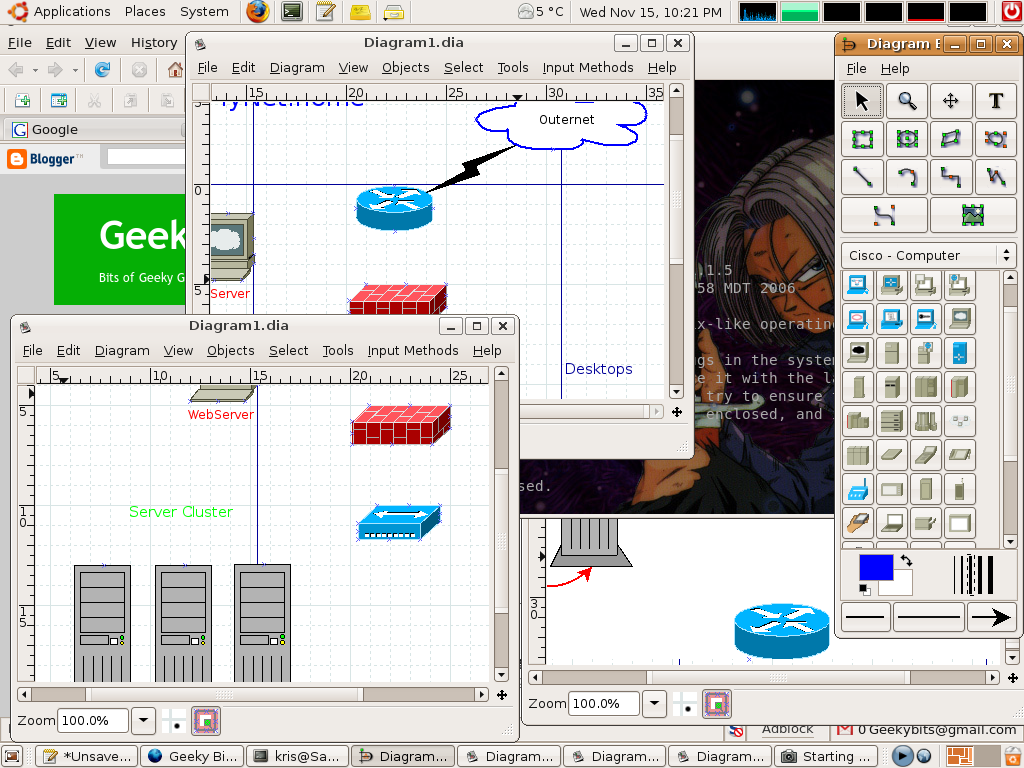
Inside of NetBSD live there was a really cool little program called Dia Which is a diagram creation program. Dia is a gtk+ based diagram creation program released under the GPL license. I love this program, you can draw diagrams of SO many things.
It currently has special objects to help draw entity relationship diagrams, UML diagrams, flowcharts, network diagrams, and many other diagrams. It is also possible to add support for new shapes by writing simple XML files, using a subset of SVG to draw the shape.So if you are drawing heaps of diagrams all the time, or even if you only draw them occasionally this program is very much worth a look. It can make your design time much shorter.
This screen shot is of me working on a dia drawn network diagram.
Have fun.
Subscribe to:
Posts (Atom)